
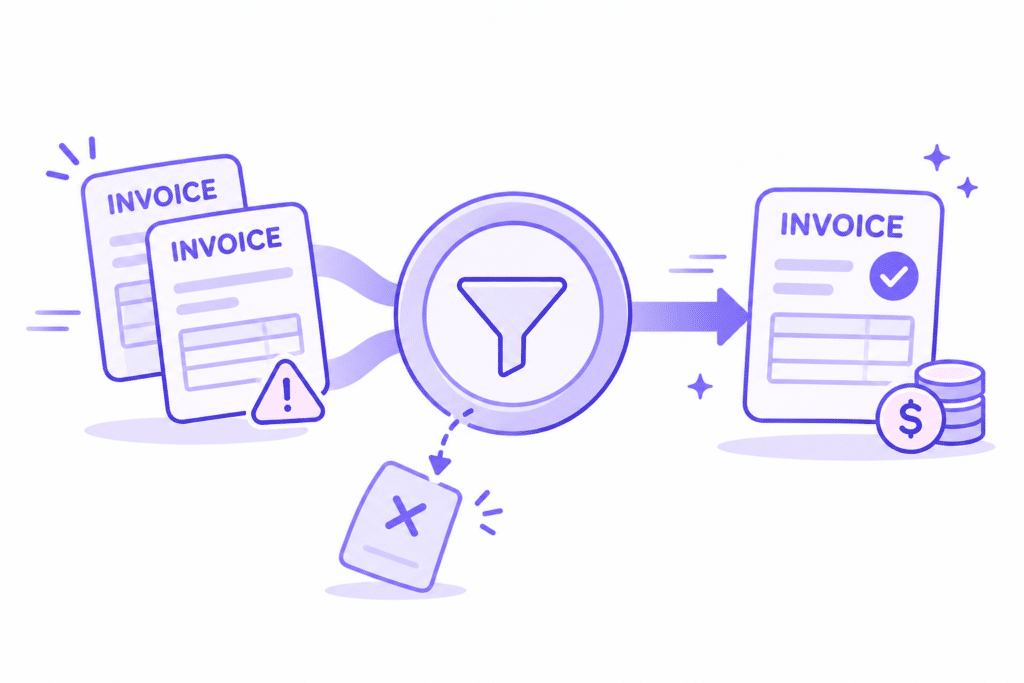
A duplicate invoice looks harmless from the supplier side. You sent the same bill twice; the customer pays once, nothing lost.
In practice, the second copy often stops the first one. Your customer’s AP team flags the pair, puts both on hold, and asks you which one is real. The cash you were counting on sits still while someone sorts it out.
Most duplicates aren’t careless mistakes. They come from teams that can’t see what happened to an invoice after they’ve sent it, so they resend it to be safe.
This guide covers why duplicate invoices occur on the supplier side, what they cost, and how to stop sending them.
What is a duplicate invoice?
Definition
Duplicate invoice
An invoice that reaches the customer more than once for the same goods or services. It may carry the same invoice number, or a new number for the same charge. Either way, the customer’s AP system or team treats it as potential double billing and holds it.
AP teams work hard to prevent duplicate payments because paying twice means they have to chase back money. Many use AP automation that compares every incoming invoice against existing records in their accounting systems, including invoice number, amount, date, purchase order, and vendor record.
When two look alike, both can stop until someone confirms which one to pay. That’s normal in any accounts payable process, and it’s exactly why your duplicate can hold up your original.
Why suppliers send duplicate invoices
Duplicates rarely start with one wrong click. They come from a few patterns that repeat across billing teams.
You can’t see the status of the first invoice. The invoice was entered into a customer portal, but nothing came back. No approval, no rejection, no email. After a few weeks, someone resends it “just in case.” Our piece on why “sent” doesn’t mean “accepted” shows how common that silence is.
The same invoice goes out through two channels. Your ERP emails it to the customer’s AP inbox, and someone on your team also uploads it to their portal. Many customers who use a portal either ignore emailed invoices or process both.
A rejected invoice comes back with a new number. The portal rejected the first version, and your team fixed it and issued a new invoice. But nobody canceled the original with a credit memo, so the customer now sees two open invoices for the same work. A small data-entry error on the reissue, such as a changed date or amount, can make it appear to be a new bill.
Several people own the same customer. A billing specialist resubmits while a collector emails a copy to the buyer to speed things up. Neither knows the other did it.
At Demandbase, the billing team once tracked statuses by hand across more than 30 portals, in a shared Google file. That’s the kind of gap where resends start.
What a duplicate invoice costs you
The cost isn’t the second invoice. It’s what the second invoice does to the first, and to your whole invoice process.
- Both copies stop. Many AP teams hold every match until a person reviews it. Your original, correct invoice waits too.
- Payment terms restart. If you cancel and reissue, many customers count the payment terms from the new invoice’s acceptance date rather than the old one.
- Your aging report lies. Two open invoices for one charge inflate receivables and confuse collections.
- Credibility drops. AP teams that keep catching your duplicates start reviewing everything you send more slowly, and the vendor relationship gets harder.
- You may get paid twice. That sounds good, until you have to find it, refund it, and explain it.
How to prevent duplicate invoices
You can’t prevent every duplicate with one rule. But four habits remove most of them.
1. Pick one channel per customer
Record how each customer wants to receive invoices: their portal, a specific AP inbox, or EDI. Send through that channel only. If a customer uses a portal, stop the automatic email from your ERP for that customer.
2. Check the portal before you resend
Before anyone resubmits, check whether the invoice is already in the customer’s portal and what its status is: pending approval means wait; rejected means fix it; paid means stop.
The approval workflow guide explains what each status usually means.
3. Cancel before you reissue
When you correct a rejected or disputed invoice, first cancel the original with a credit memo, then issue the new one. Note the link between the two on both records. Our guide to invoice dispute management covers the credit-and-rebill step.
4. Give each customer one owner
Name one person who submits and resubmits invoices for each customer. Collectors can chase payment, but they send status questions, not invoice copies.
Keep an audit trail of every submission: date, channel, invoice number, and status. Anyone on the team can then see whether an invoice went out once or multiple times, without relying on manual data entry in a spreadsheet.
A quick check before anyone resends
- Is the invoice already in the customer’s portal, and what’s its status?
- Did it also go out by email from your ERP?
- If it was rejected, did you cancel the original before reissuing?
- Does the purchase order still have enough funds for it?
- Who owns this customer, and do they know?
Key Takeaway
Most duplicates come from not knowing what happened to the first one. Fix visibility first: one channel per customer, a portal check before every resend, and a credit memo before every reissue.
Where portals make duplicates more likely
Customer AP portals add their own traps. Some reject an invoice number they’ve seen before, even after you’ve canceled the first one.
Others accept the second copy and hold both. A few let a rejected invoice remain in a “returned” state, as if it had never arrived.
Every portal checks differently, and the rules can change. That’s why preventing portal invoice rejections starts with knowing each customer’s rules, and why a PO problem often turns into a duplicate later, as our piece on PO mismatches and invoice rejections shows.
How Monto helps prevent duplicate invoices
Monto is your team’s AI co-worker for invoice-to-cash. It learns each customer’s portal rules and delivers every invoice through the one channel that customer expects.
Before it submits, Monto checks the invoice data against what’s already in the customer’s portal to catch duplicates before they go out. When it finds a likely duplicate, it holds the invoice and flags it for your team instead of sending it again. After submission, it tracks each invoice’s status, so nobody has to resend “just in case.”
At Miro, the AR team put it simply.
Customer Story
“To be able to trust that the system will handle it is extremely useful for us.”
Chase Dixon, Senior Accounts Receivable Analyst, Miro
See the status of every invoice across your customers’ portals before anyone hits resend.
Talk to our team about duplicate invoices →FAQ
What is a duplicate invoice?
A duplicate invoice is an invoice that is sent to the customer more than once for the same goods or services, with the same or a new invoice number. The customer’s AP system usually holds both copies until someone confirms which one to pay.
Why do suppliers send duplicate invoices?
Most suppliers send duplicate invoices because they can’t see what happened to the first one. Common causes include sending via both email and the portal, reissuing a rejected invoice without canceling the original, and several people resending to the same customer.
Do duplicate invoices delay payment?
Yes. Many AP teams hold every invoice that appears to be a duplicate until a person reviews it, including the correct original. If you cancel and reissue, the payment terms often restart from the new invoice’s acceptance date.
How do you prevent duplicate invoices?
Send each customer’s invoices through a single channel only; check the customer’s portal before resending; cancel the original with a credit memo before reissuing; and assign each customer one person who owns submissions.
What should you do if you sent a duplicate invoice?
Tell the customer’s AP team which invoice to pay, and cancel the duplicate with a credit memo so it closes on both sides. If the customer already paid twice, refund or credit the extra payment and record it against the account.